Sign in through your browser
Choose the ChatGPT connection in Settings → AI / API and sign in with your existing account. Mistral Vibe also offers browser sign-in once Vibe is installed. Account sign-in and provider APIs are separate connections.
 Formnaro
 · AI and CAD
Get help designing a part, analyzing a reference photo, or learning a modeling step. Sign in with an existing account, set up a provider API, or connect your own agent through MCP.
Choose the ChatGPT connection in Settings → AI / API and sign in with your existing account. Mistral Vibe also offers browser sign-in once Vibe is installed. Account sign-in and provider APIs are separate connections.
Add an API key for OpenAI, Mistral, DeepSeek, Claude, Gemini, Grok, Groq, Qwen, Kimi, GLM, or MiniMax. You can also enter a compatible endpoint, for example to use a model running locally.
Sign in to Codex as usual and add the local Formnaro MCP adapter. Other clients that support local MCP, such as OpenCode, can use Formnaro tools the same way. The agent uses its own model and provider connection.
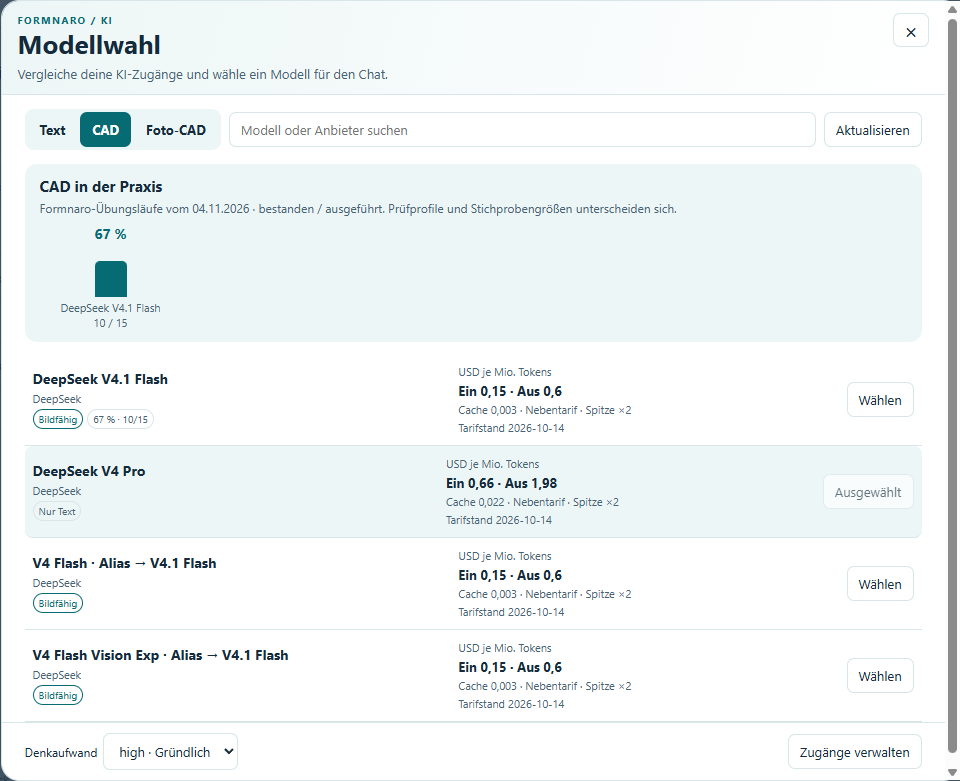
Your choices depend on the connection you set up and what your account can access. The model picker shown above lets you search by provider or model and switch between Text, CAD, and Photo CAD. For reference photos, choose a model that accepts images.
Ask for a plate with a centered hole, for example. The Formnaro chat creates a preview you can inspect and apply. An agent with the local interface enabled can read the scene, calculate previews, check dimensions, and apply the requested changes.
Formnaro runs the CAD calculations locally. When you use a cloud model, your message and the context needed for the task go to the selected provider.
See practice mode in action ↗